
How Can We Help?
How to create a preparer account
How to create a preparer account
The objective of this article is to walk you through on how to create a preparer account.
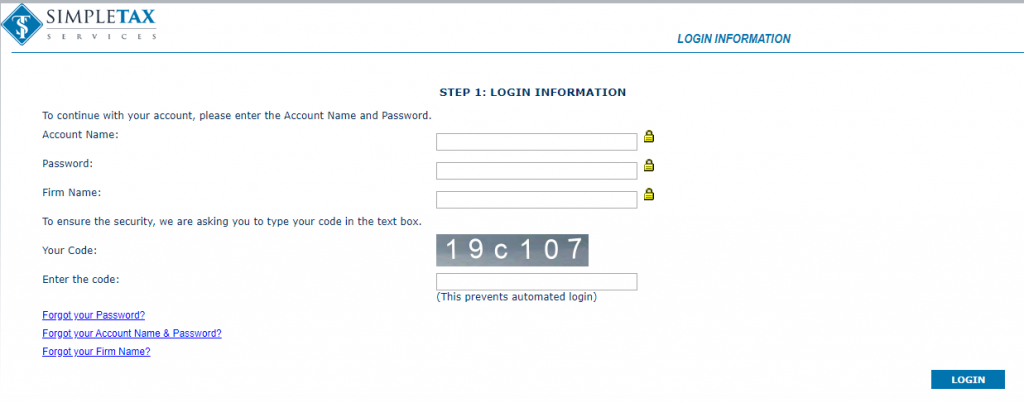
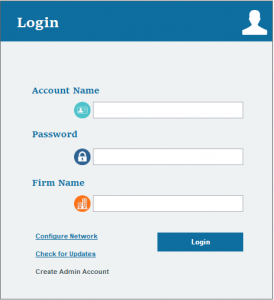
- Login to your KIS Online or KIS Desktopsoftware.
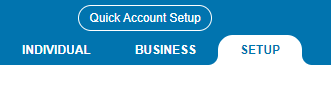
- Click on the SETUP tab at the top right corner.
- You will automatically be take top the PREPARER INFORMATION screen. Click on the third icon at the top that says Add New Preparer.

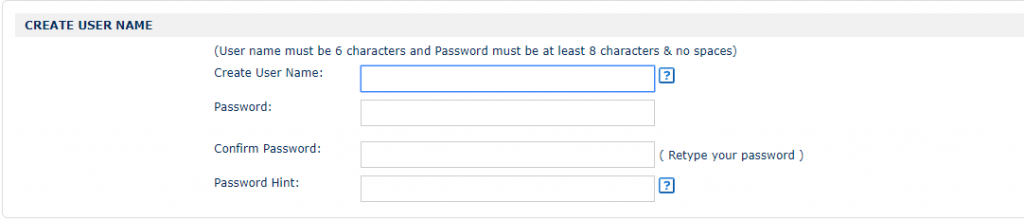
- Enter the information to create the User Name for your preparer and their password. This is what they will use to log in to the software.
- Please enter the Preparer information and make sure you include their name, email and PTIN.

- Scroll to the bottom of the page and under USER OPTIONS select what you will allow the preparer to do and select the privileges.
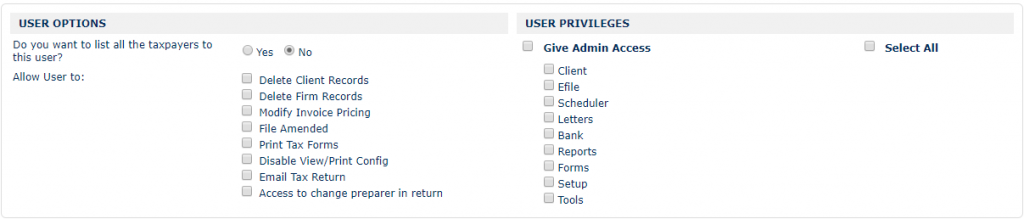
- Once done, click on the blue button that says CREATE NEW USER, to save the information.

RECOMMENDED
Once you click on CREATE NEW USER, you will be directed to the SECURITY QUESTION tab.
Now you will be directed to the LOGIN SECURITY tab.
- Select a question from the drop box for Security Question 1 and enter the answer below it. Do the same for Question 2 and 3.
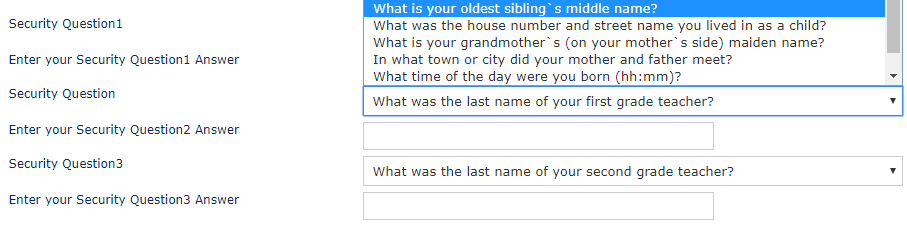
- Once you answer all three Security Questions, click on the blue button on the lower right of the screen that says SAVE CHANGES.

Now you will be directed to the SECURE PASS tab. This is to ensure extra protection to all your clients personal information.
- Under TWO STEP AUTHENTICATION click on the green button that says Activate Login Code Security.

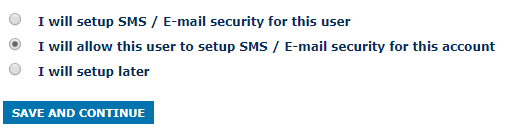
- Check the box in front of the phrase “ I will allow this user to setup SMS / E-mail security for this account.” Click on the blue button at the lower right corner that says SAVE AND CONTINUE to save this change.
- Under GOOGLE AUTHENTICATION click on the green Setup button to set up.

- Follow the instructions and download the Google Authentication app to your Apple or Android phone and proceed with the next steps.
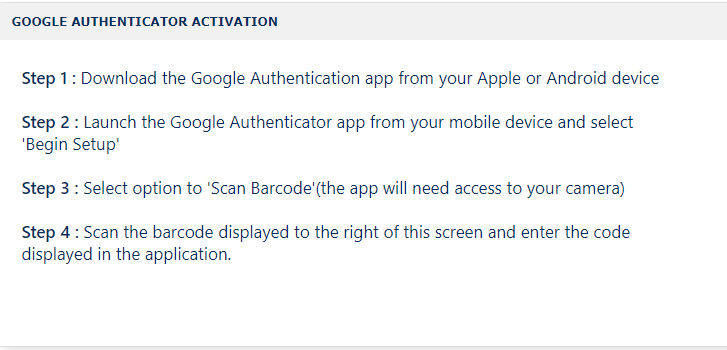
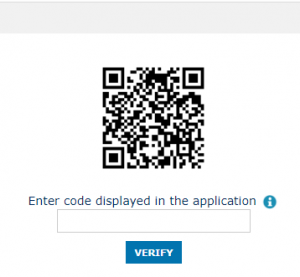
- Once you receive your code to your mobile phone, enter the code under the Barcode and click on the blue button that says VERIFY.
- Under SECURITY PIN click on the green button that says ADD PIN.

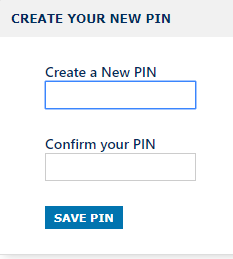
- Enter a 4 digit numerical pin on the Create a NEW PIN box and then confirm it on the Confirm Your PIN box.
- Click on the blue box below that says SAVE PIN.
Now you have successfully created a preparer account.