
How Can We Help?
Electronic Signature Setup in KIS Desktop
This article will show you how to Setup the Firm Signature and Preparer Signature in your software.
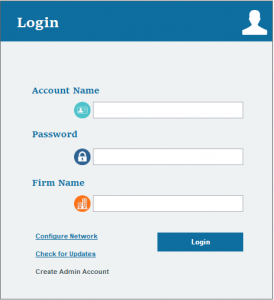
- Login to your KIS DESKTOP
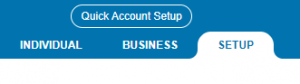
- Click on the SETUP tab at the top right corner.
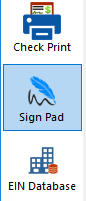
- Click on the Sig Pad icon on the left side (6th one down).
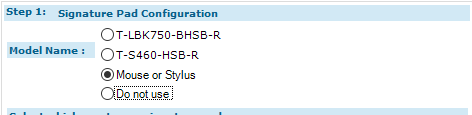
- On Step 1: Signature Pad Configuration select the Model Name of your signature pad if you have one or select Mouse or Stylus to use your computer’s mouse or a stylus.
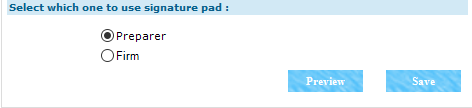
- On Select which one to use signature pad, select which signature you want to do first, Firm or Preparer.
- Click START next to the selected signature box.
- Sign inside the box using your mouse or signature pad and click SAVE.

- To sign the other signature box, go back Select which one to use signature pad, select which signature you want to do first, Firm or Preparer.
- Click START next to the selected signature.
- Sign inside the box using your mouse or signature pad and click SAVE.